Pages

Showing posts with label tricks. Show all posts

Nov 2, 2012

How to Fix your Slow Internet Connection

How to Fix a Slow Internet Connection 

If your internet connection is slower than you would like it to be, some of these tips and tricks may help you speed it up to a more satisfying point. There are many things that can slow down an internet connection and we will troubleshoot some of the most common problems that cause a slow connection below.

Your Computer Is Bogged Down

Often times the problem isn’t the internet connection itself but the computer its running on. A computer that is running under optimum performance because of viruses, too many programs running, or limited virtual memory or hard drive space will make an internet connection seem slow because web pages don’t appear to load quickly. The problem in this case is the slow computer making everything run slower your internet connection included, if this is the case you might want to start by checking up your internet speed

Check Your Internet Connection Speed

One way to check your internet connection is by hovering your mouse pointer over the internet connection icon in the bottom right hand corner of your laptop or desktop. You can click on the icon, a pop up window will display your internet connection, the next thing to do will be to click the icon to launch the Properties window.

You can equally test your internet speed at Speedtest.net

Utility Programs such as TuneUp can also help boost your internet speed

Although your computer can actually handle a number of processes at once but shutting down any unnecessary programs, clearing out your temporary internet files and cookies, and running a good anti virus software to clear out any malicious programs. In some cases a computer may ever need a full reformatting. Once you have your computer working at full speed again there is a good chance your connection will enjoy a significant boost as well.

If your computer is slow or not connecting at all, one of the first things you might want to do is:

Unplug

You might want to unplug your router and modem internet cables for about 5 to 6 minutes. This approach can sometimes help improve your internet connection problems, you might also want to check your modem or router hardware to make sure that everything is ok, use of bad cables can significantly reduce your connection speed

Reduce Your Web Cache

You may have to consider reducing your web cache to speed up your slow internet connection, this will involve a little bit of tweaking in your internet options. To do this, follow the instructions below:

Click Start >> Click Control Panel >> Double Click Internet Options >> Click Settings under Browsing History

The idea here is to reduce your web cache and make it as small as possible. The lesser your temporary files, the lesser the data that your computer needs to search through.

What are Other things that causes Your internet Connection To Slow and What Can You Do About Them?

Someone is Leaching Off of Your Connection 

If you are using a wireless internet connection and your speed isn’t what it should be then you may have someone pirating your bandwidth. If you have no security or weak security there is a very good chance this is happening even if you haven’t noticed a drop in your connection speed.

To see if this is the problem or stop it from happening you need to make some changes to your security settings for your wireless network. If you don’t have a password add one, and if you do have a password change it to something new. If you only have a WEP encryption you may want to update it to something stronger like WPA. Once you change your password any unauthorized users should be locked out at least temporarily and you should see an increase in internet speed immediately.

You Are Not Paying For Enough Bandwidth 

Sometimes people just don’t understand what different bandwidth speeds offer. If your computer is clear of viruses and running at full speed and you have no unwanted leachers on your wireless network but your connection is still to slow for your liking, then you may just need to pay for a higher bandwidth limit from your provider.

Most providers offer different tiers of bandwidth levels. If you crave for a faster connection contact your provider and have your contract upgraded to a faster connection for a larger monthly fee. If this is the problem with your connection, there really isn’t anything you can do other than accept the fact that you have to pay more for a faster internet connection.

Tags: Internet Connection, Internet Speed

Source : techtalkafrica[dot]com

Oct 26, 2012

Tips and tricks to insta-turn you into a better Instagrammer

better instagrammer header tips and tricks for instagram

While most of us love Instagram, we don't always know how to use it best. Use these tips and tricks to perfect the images you're sharing on the network, as well as improve how you're interacting within the extremely loyal Instagram community.


Instagram: For some of us, it’s an addiction. For others, it’s a marketing tool. Either way, we can all agree that the service has revolutionized photo-sharing by giving us something that’s incredibly simple, fun to use, nostalgic, and most of all social, all wrapped up in one beloved platform. Being a photo-based platform, there are ways to get better photos with your device in your quest to gain more comments and likes. Here are a couple of tips to start off.

instagram advanced cameraAdvanced isn’t everything

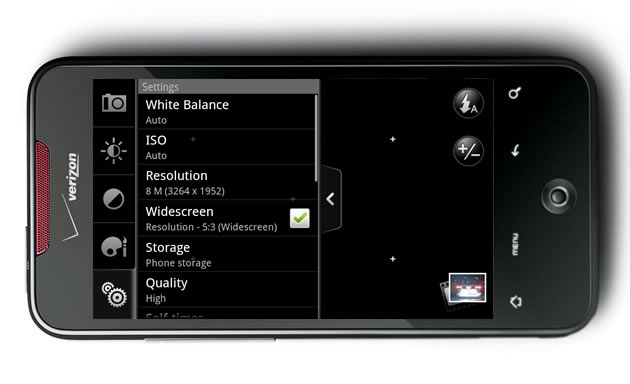
Straight out of the box, Instagram for Android provides you with its Advanced Camera setting. Head over to the menu/profile settings and turn it off. Your device’s standard capabilities are much better and also provide you with more versatility when it comes to getting a better photo.

The Advanced Instagram Camera can make composition easier for you. It can also eliminate the need for cropping your image afterward if you know exactly what you want. But just like in real photography, there is no reason to limit yourself if you want to change your creative vision later.

Android Users: Experiment with exposure

Most Android devices have exposure control settings. Users can control variables like contrast, exposure compensation, ISO, white balance, and more. Playing with these settings can help you to get better results before you apply Instagram’s filters. Let’s run through this quickly:

  • Contrast: How much of a difference there is between the bright and dark areas. The more contrast, the greater a difference. It also greatly affects colors.
  • Exposure compensation: Telling the camera to make the overall exposure brighter or darker.
  • ISO: How sensitive the camera will be to light. It’s a good idea to usually just leave this in the Auto setting. However, if you’re taking photos of your dog, baby, or another squirmy subject that just won’t stay still, feel free to raise this up to ISO 800 or 1600.
  • White balance: This changes the overall color rendition of the image without making it look monochrome or Sepia. 

android camera settings
Getting a better image to begin with will mean that Instagram’s filters will also do a potentially better job and you’ll get a higher quality final result.

iPhone Users: Lock it up

iphone camera ae af lockThis is a popular technique many iOS power users love:

  • Touch the screen to focus on a subject; you’ll see the blue box show up when you tap, and then hold for a second. This will lock the focus and exposure.
  • Recompose the image, if need be.
  • If needed, also provide a bit of fill flash.

Sometimes, a flash can provide light that is too harsh. Try putting a tissue over the light so you don’t blow out all of the lovely natural colors on your sushi plate (just a hunch).

Get creative with Instagram’s arsenal

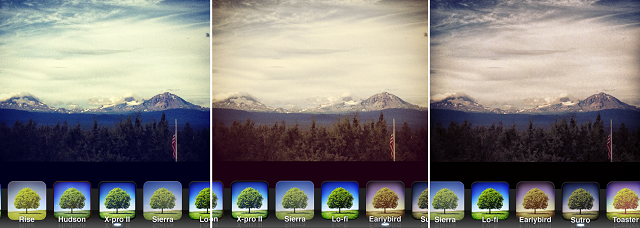
Photography, for artists, casual users, and just about everyone in-between is all about falling in love just a little bit every day with each picture we take. With that said, you can make your images better by experimenting with all that Instagram gives you. For example, some filters are more versatile than others, but there are certain ones that were meant for specific shades of light or that look best with their included borders.
filter options
Want to make your images look like they weren’t taken with a phone? Compose your scene so that it can possibly have some sense of depth, and then apply the tilt/shift filter accordingly.

instagram tilt shift

Sayonara, screenshots

instragram screenshotIt happens to the best of us: Sometimes, we can’t help but share those hilarious text or Twitter exchanges with our dear Instagram followers. But adding that Walden filter to it is a bit unnecessary – meaning, don’t do it. This just isn’t the place to share those text-moments, head over to Twitter, Facebook, or Tumblr for that. And the moment is too good not to post to Instagram, it is also well worth #nofilter.

The personal touch

Go ahead and use some hashtags, just don’t make a habit out of listing every possible topic for a photo.  No more than two or three are ever really necessary – you don’t want to be that person (see if you can spot which of the examples below completely overuses hashtags while also failing to add a caption that sounds even remotely human). Also, be sure to act like a real person; interact with other users genuinely, like you would in real life, and don’t pretend to be something you’re not (it’s okay to just take pictures of your cat or your food, just don’t wax philosophically in the comments about your artistic eye). 

hashtag examples


Source : digitaltrends[dot]com

Sep 1, 2012

Faster than a speeding right cross: Hands-on with Injustice Gods Among Us

Injustice Gods Among Us

Even though Injustice: Gods Among Us comes to us from the developer that brought us Mortal Kombat, this DC character-based fighter has its own bag of tricks.

Fighting games all have a unique fingerprint. When a developer designs a fighting game, that game takes on the characteristics of the developer, regardless of what the content is. A perfect example of this can be seen with Capcom. A fan of Street Fighter can pick up any of the Capcom fighting games and feel comfortable with the controls. Those games all have a specific style and gameplay that is unique to them. So when NetherRealm Studios announced that it was making Injustice: Gods Among Us, a fighting game using a cast of characters from the DC Comics universe, it was an understandable assumption that the game would mimic the style of Mortal Kombat. But we were wrong.

Injustice Cyborg

Injustice does feel like Mortal Kombat in some ways, but it is also its own game. The move list is similar to that of Mortal Komabt, but beyond that, it acts and responds in a different way. One specific difference is the change in the way you block. The Mortal Kombat games are well known for using a block button. While that sounds innocuous enough, it changed the fighting mechanics and the way gamers approached the gameplay. Injustice does not have a block button, instead you hold back to block. The buttons are different as well, and rather than two punch and two kick, or strong and weak attacks, there are three attack buttons and a button that unleashes an attack specific to the character you are using. For a character like Flash, it will activate his powers, and the opponent will slow down to represent you moving at super speed, while Nightwing will combine his escrima sticks into a staff, which opens up a new moves set. Each character is different.  

Each character also has a special attack that is powered up during the fight. Once it is filled, pressing the trigger buttons together begins an incredibly powerful attack. Solomon Grundy takes knives and hatchets out of his back to slice his opponents in a cinematic, the Flash takes a running start around the world and hits his foe, Wonder Woman slashes her opponent with help from her Amazonian brethren. Each character has his or her own cinematic attack. It can be dodged, but it is difficult. It’s similar to the new Mortal Kombat x-ray attack, but less gory and more in line with comic books flair.

Injustice Batman vs Cyborg

The levels will also have a bit of Mortal Kombat flair. They are all modeled on DC locations and will be steeped in lore. Of the two that have been announced, the Batcave and the Fortress of Solitude, both are filled with background items that fans will love. The Batcave will feature a computer running villain profiles, while the Fortress is chalk full of Superman history. Doomsday is clearly seen in the background, just feet from the bottled city of Kandor, and Superman’s zoo is also featured. All levels will also have multiple sections to them, and punching an opponent in the right spot can send them crashing through a wall – or the Phantom Zone as the case may be — to an new area. The levels will also feature environmental items that can be used as weapons. A hanging display, for example, can thrown at an enemy.

So far only nine characters have been revealed, but there will be over 20, and maybe even many more. The exact number has yet to be released, but the characters currently on display are: Superman, Batman, Wonder Woman, Flash, Cyborg, Harley Quinn, Catwoman, Solomon Grundy, and Nightwing (developer Ed Boon’s favorite character). The remaining fighters will be unveiled over the next few months, but there are some you can certainly expect like the Joker, Green Lantern, and more of the more familiar faces.

Injustice Nightwing vs Flash

The characters will also fill certain roles. Superman is a heavy bruiser, slow and powerful, while Flash is a faster character that can make up for weaker attacks with quantity. All of the characters are also broken up into one of two groups, those with powers and those with gadgets. Superman and Wonder Woman are obviously power characters, while Batman and Catwoman are gadget characters, to name a few.

Now, if you are a fan of DC comics, you may wonder how Wonder Woman could go head to head with Harley Quinn and not pulverize her skull with a single punch. Longtime comic fans could probably make an argument that Batman could take Superman with careful planning, but it seems doubtful that it would make for a good 2D fighting game. NetherRealm Studios is promising that there will be a legitimate reason for this that will be part of the storyline.

Injustice Cyborg vs Wonder WomanThere is one minor edition to the gameplay that could have a huge effect on the course of the fights. When you are forced into a corner, on each level there will be a button (or something similar that you can interact with) that you can press. When you do, it will unleash an environmental attack on your opponent. The level will dictate the attack – it could be missiles from the Batmobile or a boom tube that allows you to warp behind your opponent and hit them — but it will give people that find themselves under constant attack a way to get out.

Injustice: Gods Among Us is shaping up nicely. The game still has the distinctive feel of Mortal Kombat in some ways, but it is more like cousin than a clone. The fighter feel appropriately different from one another, and it will be interesting to see what other characters make the cut and end up in the game. NetherRealm and Warner Bros Interactive Entertainment haven’t given a release date yet other than 2013, but fighting fans and DC comics fans alike should keep an eye out for this one.


Source : digitaltrends[dot]com

Aug 30, 2012

The Samsung Galaxy Note II hands-on video is here

The Samsung Galaxy Note II promises to be the champion that resurrects the stylus – the second-gen phablet is way more powerful than its predecessor and has learned some cool new tricks. We shot a hands-on video of the Galaxy Note II to give you a sneak peek at some of the improvements.

We start off with a look at the S Note app and test the pressure sensitivity of the new Note II. It can distinguish between 1024 pressure levels, four times as many as the old one, and it shows.

Also, notice the small blue dot that follows the S Pen even when it’s not touching the screen – it’s the new hover functionality.

When you’re in the browser, you can circle a part of the page to snap a screenshot of that area only, which you can later use in various other apps (everything form S Memo, through email and ChatON).

Towards the end of the video you can see the updated task manager and the new split-screen gallery.


Source : blog[dot]gsmarena[dot]com