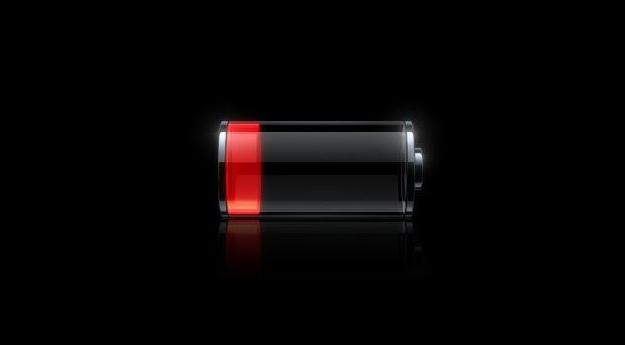
Get the most out of your iPhone battery by following these steps, which should see you return the phone to it's charger less often.
It’s one of those first-world problems that we’re all trying to solve: How to make the battery on our iPhone last just that little while longer. Thanks to Apple’s wisdom, we can’t pull the battery and replace it with a fully charged one, so we have to examine our usage and the phone’s activities to extend the amount of time between charges.
The basics
Battery life can be increased just by familiarizing yourself with the Settings menu and toggling a few switches, some of which are fairly obvious, while others not so. Let’s get started: Open the Settings menu, and pay close attention.
- Wi-Fi: This one is an easy one: If you don’t need it or are using 3G/4G, then turn off Wi-Fi. The convenience of not having to switch it on and off isn’t a fair trade for the power it uses while searching for networks.
- Bluetooth: Another obvious one, but leaving Bluetooth on when you aren’t using it causes considerable battery drain.
- Location Services: This one needs some consideration, as some apps — Maps for example — require location services to be active, so you may want to explore the Location Services menu (found under Privacy in iOS 6) and only turn off those you don’t use on a regular basis. For example, does IMDb and Ocarina really need to know where you are?
- Time Zone: While you’re digging about in the Privacy menu, scroll down and tap System Services, where you’ll find a range of options including the chance to turn off automatic time-zone changes. In iOS 5 this was found to be a power hog, so if you don’t need it, turn it off. In fact, while you’re there, turn off Location-based iAds and Diagnostics too.
- Push: Whether it’s Push emails or Push notifications, your phone will be chatting to the network on a regular basis with both activated, and therefore using precious power. Email accounts can be individually set up for Push data, so switch off those that you don’t always need to check, or if you’re serious about saving battery power, turn them all to “manual.” You’ll find these options under Settings, Mail/Contacts/Calendars and Fetch New Data. For notifications, there’s an entire menu dedicated to them in iOS 6, and each app that offers Push notifications can be activated or crucially, deactivated. Like Push emails, if you’re serious about your iPhone’s battery, turn all but the essentials off.
- Brightness: Turn Auto-Brightness on, but at the same time drag the brightness slider down as low as you dare. This will save significant energy.
 Intermediate level
By managing Wi-Fi, Bluetooth, Push, and the brightness of your iPhone’s screen, you’re well on your way to a longer lasting battery. But if you want more, then you’ll want to try these suggestions, although the effect won’t be as great as those described above.
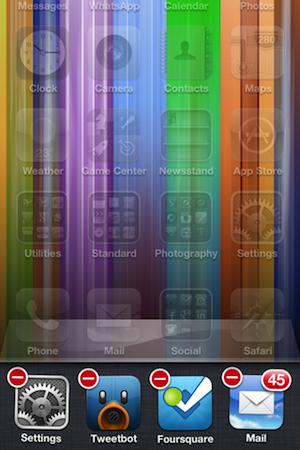
- Manually Close Apps: This is a controversial one, as Apple will tell you that apps living in the app tray are in stasis, and shouldn’t drain your battery at all. Possibly, but many users will know certain apps still draw power when in this state. So, double tap the Home button, hold down an icon to enter “jiggly” mode, and close everything using the little “x.”
- Siri: If you never ask Siri a question, shut her down under the Settings menu. She doesn’t do much unless you ask her something, but one less active feature can only be a good thing.
- Screen Lock: Make sure your phone locks itself — which turns off the screen — after one minute. The less time it’s idle with the screen on, the better. Do this under Settings, General, and Auto-Lock.
- iCloud: This works in a similar way to Push, where data is being transmitted from your phone to Apple’s servers in the background. If you don’t need to back up to iCloud, turn it off under iCloud in the Settings menu. You can also individually select what’s backed up too, and the fewer there are, the less time it takes. Plus, there’s the added benefit of using less iCloud storage space too.
For the hardcore among you
So, you’ve done all that you can, but the charger still beckons. Then it’s time to get serious. If you want your battery to last, really last; then sacrifices need to be made.
- Cellular Data: No arguing, if you don’t need it, head to Settings, General then Cellular and turn it off. If calls are unimportant, putting the iPhone into Airplane mode will really stretch the battery’s life too. You’ll just be left holding the equivalent of an iPod Touch.
- External Battery Packs: You may not be able to change the battery, but you can add a battery to the iPhone instead. There are many long-life battery packs available — mostly using the 30-pin connector, but that will change over time — where you sacrifice size and weight in return for a heavy duty battery case plugged into your slim and light iPhone.
Finally, if you want the best from your battery; look after it. Regular charging patterns are good for phone batteries, and continually having it at 10-percent and only charging it halfway will shorten its lifespan, and provide poor performance. Modern Li-ion batteries may not have the same issues as older Ni-cad cells, but that doesn’t mean they don’t respond to proper treatment.
Source : digitaltrends[dot]com